Scrolling Text

Blogger Tips and TricksLatest Tips And TricksBlogger Tricks

Welcome to My Blog !

By : Nirdosh Dhakal
I'm, here at this regular post Free Software, Computer Problem Solving, Tips, Tricks & Tutorial. Various stuff to change Windows look & feel. In this article, I'm going to list some of my best and most exclusive articles for you. So take your time and make sure you haven't missed any of them?

Showing posts with label Others. Show all posts

11 September 2013

How to Fix Annoying Cursor Jumping Problem While Typing Documents in Laptops?

Today I'm going to talk about one of the most irritating, annoying and frustrating problems I have ever encountered while using laptops. The problem occurs while typing some text. It doesn't matter what and where are you typing, you might be typing in Microsoft Word or a web browser or anywhere else. When you are typing some text, the mouse cursor automatically jumps to a different location and if you don't notice it and keep typing, you may end up with an unpredictable document which might look written in an alien language.
In past I was using Dell XPS 1530 laptop and I never faced such problem but when I got another laptop Dell XPS M15, I started having this annoying problem. I double-checked that my hands were not touching the touchpad accidentally. In fact I tried to type some text while looking at the keyboard and touchpad and still the cursor jumped to a different location.
First I thought that its a problem in my laptop but then I searched on Internet, I found there are many people who have faced the same problem while using a laptop with touchpad. Most of them were using laptops of Dell, HP or Sony.
So its definitely a problem present in some laptops and not in your hands. So what's the solution? How to fix this annoying cursor jumping problem?
Here is the answer! I found that a freeware "TouchFreeze" can fix this problem. It has been suggested by lots of people in Microsoft communities as well.
TouchFreeze is a free software which automatically disables the touchpad of your laptop as soon as you start typing. Since the touchpad is disabled, the cursor will not jump automatically while typing.
You just need to install the software and it'll sit in system tray. Its very simple to use and doesn't need any configuration. If you want to close it, you can right-click on its icon in system tray and select exit option.
If you are using a laptop and facing similar problem, you can give this freeware a try using following link:

26 July 2013

Monitor User Log In and Log Off without software


This is a great little batch file that enables an admin to keep a log of where, when and what computer user log on to and when they log off.


1. Set up a Share on the network.

The batch file is actually two files. One runs at user log on and one runs at user log off. When the batch files run, they create a rolling log file with the details in a shared network folder.

1) Create a shared folder on the network. Mine is called Logs. Everyone should have full access to this share.
2) In that folder, create a folder called User and a folder called Computer.


2. Create the batch files.

Copy and Paste the following into two separate text files. When you save them, remember to change the file type to .bat

Name: Log On.bat

rem The following line creates a rolling log file of usage by workstation
echo Log In %Date% %TIME% %USERNAME% >> \\servername\Logs\Computer\%COMPUTERNAME%.log


rem The following line creates a rolling log file of usage by user
echo Log In %Date% %TIME% %COMPUTERNAME% >> \\servername\Logs\User\%USERNAME%.log


Name: Log Off.bat

rem The following line creates a rolling log file of usage by workstation
echo Log Off %Date% %TIME% %USERNAME% >> \\servername\Logs\Computer\%COMPUTERNAME%.log


rem The following line creates a rolling log file of usage by user
echo Log Off %Date% %TIME% %COMPUTERNAME% >> \\servername\Logs\User\%USERNAME%.log


Put these files in the Logs folder.


3. Add the batch files to group policy.

You do this on your User Container GPO.

User Configuration > Windows Settings > Scripts

Add Log In.bat to the Logon scripts box and Log Off.bat to the Logoff scripts box

Conclusion

Now you have a rolling log file detailing when and where each user Logs On and Logs Off. Enjoy

EDIT: As some have pointed out, you dont need to give everyone full access to the share. I did this just to make sure that it would work. You can give your groups read write access and then make the folder an admin share.

03 May 2013

Configure the Linksys PAP2


These instructions are based on using the PAP2 in its factory default configuration
which is to obtain a dynamic IP address automatically from your router using DHCP,
which is how most people have their home routers configured.For information on
Configuring your PAP2 with a static IP address, please refer to the PAP2 user manual.

We recommend that you read each step through in its entirety before performing
the action indicated in the step.

STEP 1 Connect your router with the supplied Ethernet network cable to the
PAP2. Now connect your phone to the PAP2 Line 1 port. Finally plug
the supplied power cable into the PAP2.

STEP 2 Wait 60 seconds after plugging your PAP2 in.

STEP 3 Pickup the phone connected to the PAP2 and dial the * key on your
phone 4 times.

STEP 4 Have a pen and paper ready. You will hear a message -"Configuration
menu. Please enter option followed by the pound key.",then enter 110
#on your phone. You will now hear a message giving you the Iaddress
of your PAP2 such as - "192.168.1.100 write this number down.

STEP 5 Open a web browser on your computer such as Internet Explorer and
enter the IP address you heard in step 4 as the address
Please note: some browsers will require you to remove lezero's ( 0
's ) in the IP address. For ex ample if you heard "192.168.001.0you
should change this to "192.168.1.10".

STEP 6 Please note, the PAP2 by default does not have a password assigned to it, so you should now see a page that looks like this: 
 

24 February 2013

The Best Free Programs for Your Computer

The need for a more detailed analysis of the various functional features of Windows Operating Systems cannot be overemphasized. There is a slew of bundled free programs, applications, tweaks and tricks that help in making it run as efficiently as possible. Clearly, this calls for a personal manifestation of the various ideas and commitments to better the brilliant operating system the world has ever known. However, this might be not sufficient. Despite Windows OS have got a huge variety of applications and tools embedded into its gears, sometimes you might need a special tool or a feature that Windows doesn’t own. That’s why it is important to know what software and program you need,where to get it and possibly how to get it for free!
There is a whole gamut of free programs that can be gainfully applied in furthering the operational efficiency of Windows systems. The software applications are listed here according to the various categories:
Email Utilities
This is a single most popular utility that links up communication channels across the global network through a robust software inbuilt in Windows OS. There are other equally popular and more powerful standalone software applications that take on the email functioning comfortably. Most of these email applications are vying to provide free additional storage space, backup features and a better email managing for those users who get and sent a lot of messages over the Internet.
  1. How to Look for Email Info
  2. How to Create a Disposable Email Address
  3. How to backup email messages from one server to an other
  4. How to save emails in your computer
  5. How to let the computer ask what email account you want to use
  6. How to import and export bookmarks between Web browsers
  7. Official Microsoft Outlook backup tool
  8. Gmail Desktop Notifier
  9. How to get rid of spam in your e-mail inbox once for all
  10. How to log-in to Gmail, Yahoo Mail and Windows Live Mail from the same place
Photo Utilities
Imaging, scanning, sizing and filtering have never been as easy as it is today. Thanks to a range of imaging products, you can make your own albums, email specific album pages, add music and do a lot of things that could never be thought of before. But that’s only one side of the whole story! In fact, thanks to new,incredible, free tools you can even edit your photos, turn them into sketches and retouch them to eliminate flaws or objects which spoil the scene! With the increasing use of digital cameras, such programs are now essential tools for any computer users.
  1. How to Make Sketches from your Photos
  2. How to safely resize your favorite images
  3. How to compress and optimize pictures
  4. How to reduce the file size of a pdf
  5. How to enhance the quality of your picture and images
  6. How to convert PDF to TXT
  7. How to know and understand if a picture is original or fake
  8. How to optimize pictures and images and make them lighter
  9. How to extract text from an image on the screen
  10. Edit your pictures online and for free
  11. Convert images to ICO and PNG
  12. How to convert PDF files to JPEG, BMP, GIF, PNG files
  13. How to convert pictures to PDF
  14. Turn your digital photos into beautiful sketches with FotoSketcher
  15. Paint.NET
Video Utilities
Every new version of Windows has brought about dynamic changes in the video displays. The smooth transitioning of the Windows Media Player 12 in Windows 7 has been a remarkable success. The very fact that apart from the Windows Media Player there are a host of other powerful and dynamic players available as free downloads, proves the fact that research behind the Windows Media Player has been going on feverishly. Precision software calibrations and the tying up of the loose ends have resulted in the transformation of the CD of the golden era to the image specific DVD today. Video recording, data storage and data sharing across the net have been now possible through technologically advanced quantum based processes today.
  1. How to Download a WMP file (Windows Media Player)
  2. How to Watch YouTube Videos in Windows Media Center
  3. How to Make YouTube Videos Faster and Smoothier (Improve Buffer)
  4. How to download music videos from Google
  5. How to download video and audio from ANY website
  6. How to trick your boss into thinking that you are working
  7. Multi Video Screening Multiplayer
  8. How to convert, split and merge your videos easily
  9. How to download Dailymotion videos
  10. Download FormatFactory to convert your favorite videos and audios
  11. Convert YouTube videos into iPod and PSP videos
Internet Explorer and Other Web Browser Utilities
Walking along with the new operating system there has been simultaneous up gradation of the Internet Explorer – the net gateway. The faults and the shortcomings of the earlier version have been dealt with extensively and new features tweaked in so that there is a more robust and widely acceptable gateway to the Internet world. Downtimes are minimal now. However, why to limit the number of features and add-ons with the one offered by Internet Explorer? New Web browsers have come out lately, and tons of add-ons have been created to enhance your surfing experience. Internet Experience is the first step you take in the Internet once you buy a new computer. But that’s just the beginning. You can use other more flexible browsers such as Firefox and Google Chrome or you can add new features to IE to make your surfing experience faster and more secure. Find out what you can use along with Internet Explorer thanks to these interesting articles. Surfing the Internet has never been so easy!
  1. Retrieve and Recover Facebook Password and Username from Any Computer
  2. How to Extract Any Cache File in Internet Explorer and Other Internet Borwsers
  3. How to Recover Passwords and Usernames in Opera Web Browser
  4. How to restore favicons in Internet Explorer
  5. Pimp your browser with free Bookmarklets
  6. How to use Internet Explorer, Firefox, Safari and Google Chrome in one browser
  7. How to backup your profile (history and bookmarks) in Google Chrome
  8. The best unconventional alternative to Google Chrome
  9. Surf anonymously with xB browser
Internet Utilities
The Internet browser has developed over the years, and along with it, there have been a number of new products developed that supplement the functioning of the net. The video grabber, the web grabber, Internet accelerator, You Tube Downloader are some of the many other tiny applications that are working in close synchronization with the browser.
  1. How to Download Everything from Internet
  2. Improve your Internet connection with Internet Cell Boost
  3. How to download multiple files from Rapidshare
  4. How to increase the speed of your Bittorent downloads
  5. How to download files from Rapidshare without waiting
  6. How to see blocked websites
Windows OS Utilities
So many micro OS utilities are working in tandem with the Windows OS. The system repair, better backup, disk derangement, disk cleanup, system restore and a host of other software applications and tools that are clubbed together to get your machine out of a spot. Such is the versatility of Windows  that it has an incredible capacity to repair itself and get out of a jam at short notice. But why to limit your computer experience with the limited number of programs offered by Windows? Read on and find out what you can add to your operating system in order to enhance it and boost its features to new limits! These article are meant to open your mind to new possibilities that maybe your computer doesn’t know yet. Once you will be familiar with terms such as system explorer, disk defrag, backup manager etc, you will soon find out that beyond the short horizon offered by Microsoft Windows, a multitude of free applications are waiting for you!
  1. How to Fix “Cannot Delete File…” Error in Windows Operating System
  2. How to Spy Your Computer Monitor
  3. How to Recover a Password from your Router
  4. How to Download All Programs For Your Computer at Once
  5. Download Official Microsoft Download Manager
  6. How to Fix Windows Errors
  7. How to Install Windows Updates Offline
  8. System Explorer. A Powerful Task Manager Replacement
  9. How to Limit the Time your Kids Spend in Front of the Computer
  10. How to Retrieve/Recover and Reset your Bios Password
  11. How to Lock Your Computer’s Mouse and Keyboard
  12. How to Create a Shortcut (Hotkey) for Everything
  13. How to Check Hard Drive for Bad Sectors
  14. How to Retrieve a Deleted File
  15. How to Delete Old Files by Date
  16. How to Delete Junk Files
  17. How to Defrag Windows 7 Efficently with Defraggler
  18. Download Auslogics disk defrag for free
  19. A great way to clean up your hard disk
  20. How to wipe-clean your computer hard disk
  21. How to restore deleted files in Windows
  22. How to restore your hard disk drive
  23. How to store usernames and passwords safely
  24. How to convert any software to portable applications for your USB flash drive
  25. How to make your children surf safely
  26. How to conceal folders and private data in your computer
  27. How to automatically delete any file on your computer
  28. How to protect and disguise your computer games
  29. How to backup your Windows Vista and XP drivers
  30. Recover your Windows Administrator password with PCLoginNow
  31. How to change Windows Vista operating system language
Antivirus and Anti-spyware Utilities
Windows 7 comes in built with its own anti-spyware software. Though there are other third party robust products available in this arena, Microsoft has geared up its own mechanisms and have been firing on all 16 cylinders to produce its own in-house anti-spyware.
  1. Repair and Recover Windows 7/Vista/XP After a Virus Attack
  2. How to Detect and Remove Rootkits
  3. Download Free Panda Cloud Antivirus for Free
  4. How to Remove False Antivirus Software
  5. Bitdefender free edition software
  6. Microsoft Malicious Software Removal Tool
  7. How to detect and uninstall Rootkits
  8. A valid and powerful antivirus: Rising Antivirus
Windows  is again one of the rare operating systems that functions admirably well under immense pressure. Based on its past performance it must be said that the OS has taken one giant step in the computing technology today. Side by side, it has also opened up great avenues for revenues and profits from genuine third party manufactures who are available with the latest ancillaries and accessories that augment the system’s performance many times over. This section wants to open your eyes over a new panorama of free applications and programs, which in most cases are even better than their paid counterparts. Internet is an immense sea which contains a big quantity of free stuff. Looking for them is not always easy and most users give up their quest and buy expensive software. Don’t give up your quest! This section contains a lot of free stuff. Plus its author updates it continuously. Come here every now and then and find out what Web Talk managed to find for you! Only the best, free tools manage to make their way on the lists above!

20 December 2012

Identify Unkonw device driver mannally

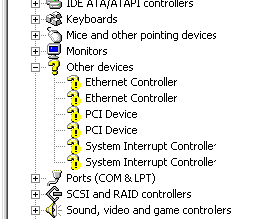
If you find a diver conflicted device in the device manager, It is difficult to identify the device. Most time it will be names as “Unknown device” “PCI Device”. There are some softwares to identify the device manufacture. Here I explained how to identify this device manually

image

Open Device manager
Run command (devmgmt.msc)
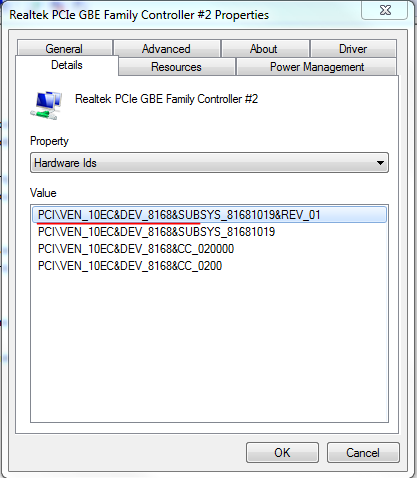
Take the properties of the device which you want to identify
Go to “Details” tab and select Hardware-id’s
Here you can see some code like below
PCI\VEN_10EC&DEV_8168&SUBSYS_81681019&REV_01
Find the highlighted text. There you can see Vendor and Device

image

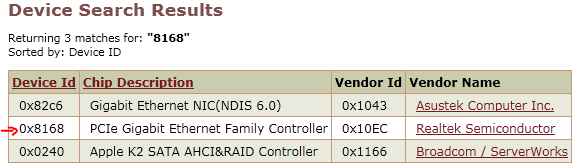
Now go to http://www.pcidatabase.com
And find out the device information by giving that 4digit value to the site and you can find make and model from there.

image

image

Once you find out the device you can directly download all divers from OEM (Original equipment manufacturer) site itself. See OEM driver download links.

28 October 2012

How to Checking Your Windows Copy is Genuine or Not

Is copy of your windows genuine or not? there two methods to check your windows copy genuine or pirate. Using “Microsoft Genuine Advantage Diagnostic Tool” (also called WGA tool) or you can check it using command prompt.But on this article I only write how to check the windows using WGA software.

The Microsoft Genuine Advantage Diagnostic Tool software designed to check the windows OS installed in your PC/computer is genuine or not. The advantage if your windows copy genuine is you can install the latest version application from Microsoft and you can update your windows is there new patch from Microsoft. If your windows installed is pirate, Microsoft may block your windows when it connect to the internet..

How to use WGA Tool to Check the Windows Copy Genuine or Not

Microsoft Genuine Advantage Diagnostic Tool for Windows 7
  • Get started. Download the “Microsoft Genuine Advantage Diagnostic Tool” here: Microsoft Genuine Advantage Diagnostic Tool (for windows XP) and here: WGA tool for windows 7
  • Run the software, the validation process only take a few second.
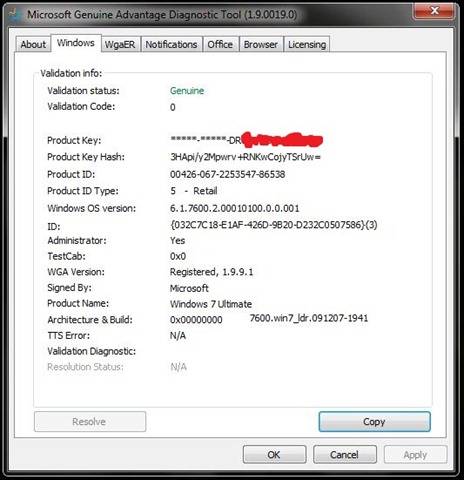
  • After the validation process finished it will show  your windows copy genuine or pirate in the validation status like this picture.
  • How if the windows status pirate?Usually it prompt you to enter new license for the windows copy. On other cases Microsoft will show black desktop and WGA notification in the right bottom of the desktop.
Usually non genuine windows copy will detected by Microsoft if you install the software from Microsoft such as new version internet explorer, newest service pack for your windows or other.

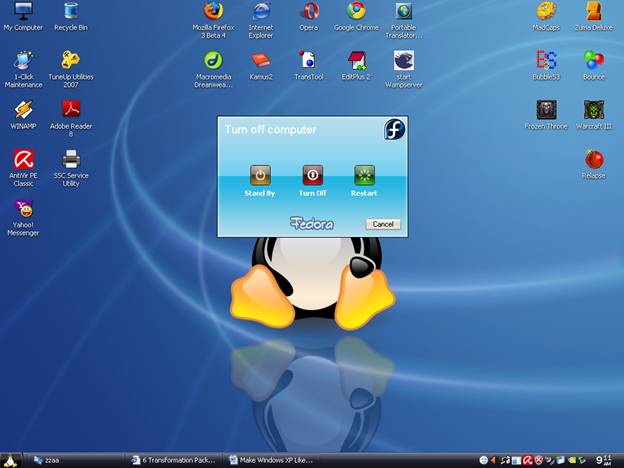
Windows XP Desktop Like Fedora Core

Do you want your desktop look like Fedora Core Linux? You must this fedora core transformation pack and install on your computer.  This transformation pack develop by PEPSI_LABEB and its release as freeware.

After installing Fedora transformation Pack, this software will changes most of your icons including system drives, control panel icon, cd-rom drive icon and change some windows component such as, Theme, logon screen, tool tips, boot screen, wallpaper  and more. 

The look n feel of my Windows XP after installed fedora transformation pack software.

fedora core transformation pack

How to use Fedora transformation pack and transform your desktop to Fedora Core?
It easy, just download fedora core transformation pack and install install on your computer and follow the installation process until finish. You can download the software from this link: click to download

Free BDlot DVD ISO Master Full Version

BDlot DVD ISO Master is innovative software from LotSoft and it’s best alternative software to create ISO Image from DVD or burning ISO to DVD. This software software provides very simple interface. Unlike other DVD to ISO burner program, the BDlot DVD ISO Master needn’t third party software to create ISO image from encrypted DVD.

          The best features, BDlot DVD ISO Master support almost all disc types, its support CDs, DVDs, and Blu-Ray discs. This software also can backup DVD to ISO without quality loss and burn ISO image to any discs at top fast speed.

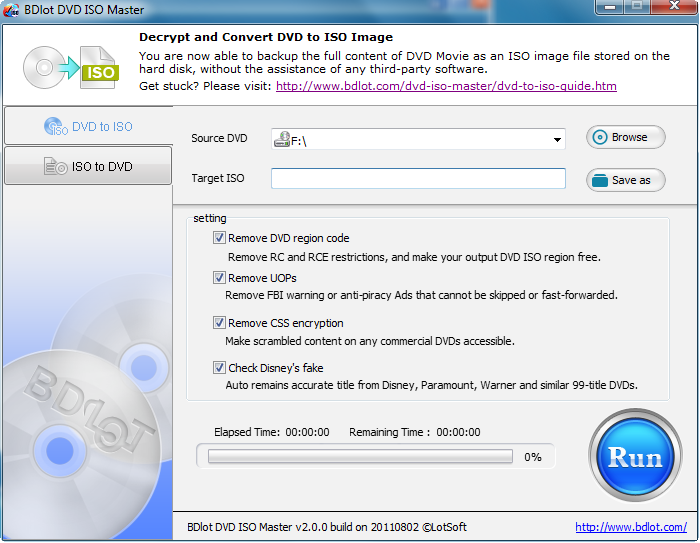
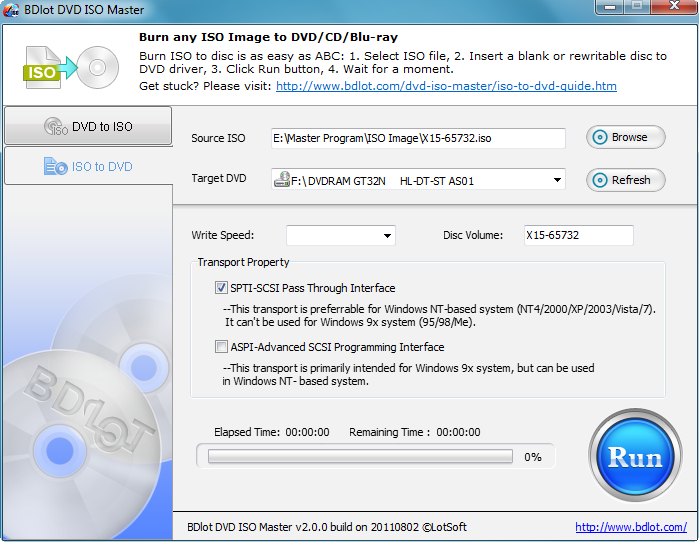
Here the Screenshot of BDlot DVD ISO Master

BDlot DVD DVD to ISO Burner

DVD to ISO creator, this software can create an ISO image from DVD in three simple steps. This software also can remove encryption and other protection from the DVD

BDlot DVD ISO to DVD Burner

ISO to DVD burner. Like DVD to ISO burner, you need three easy steps to burn any ISO image to DVD, CD or Blu-Ray discs you want.

BDlot DVD ISO Master support for Windows XP, Vista and Windows 7 and this software support 32bit and 64 bit windows version.

Conclusion, if you need free DVD to ISO or ISO to DVD burner you must try BDlot DVD ISO Master, it free, powerful and very easy to use. This software also can remove copy protection from the DVD easily.

For more details about the software and download of BDlot DVD ISO Master open the BDlot website here: http://www.bdlot.com/dvd-iso-master/

The Loginizer 1.0 Free Password Manager


The Password is often encountered when you do activities on the internet, whether it’s related to e-mail, important documents, account from a site, till online transactions. A lot of passwords can be confusing and so problems if you include people who are forgetful. When making one of the same password for all activities are certainly not wise because the more vulnerable is known to others.

Well, for those of you who don’t want complicated by the large number of password or login process, try to use The Loginizer. Applications that incorporate the word “login” and “organizer” it offers convenience to remember multiple accounts that require a login and password. She will be organising several accounts that are usually included in the login to a site for specific purposes such as accessing e-mail, websites, networks, as well as for those who struggled in the field of online business. With it, you don’t need to remember one password, but rather just one password to login when running The Loginizer.

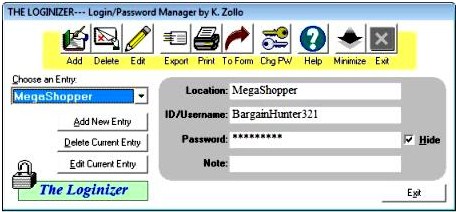
The Loginizer 1.0 Free Password Manager

You can enter the data based on the entries made by per column. Live fill that is based on location, username, password, as well as additional notes. The edit functions are provided that will edit the data that has been previously created. Data that has been created can be moved to another file format such as TXT (text) or XLS (Excel).

The Loginizer 1.0 software completely free, no ads, no registration and no fees, you can start to use this application here

17 October 2012

How To Convert Video & Audio Files Using VLC Player

VLC player is one of the most versatile multimedia player that plays most multimedia files including DVD, Audio CD, VCD and various streaming protocols. One of the most interesting thing about VLC is that you don’t need any codec packs in order to play MPEG-2, H.264, DivX and MPEG-4 files. VLC is completely free open source cross-platform multimedia player.

VLC can do more than just playing multimedia files. You can even convert many video and audio files using VLC. Here is brief step by step tutorial to convert multimedia files using VLC player.
  • Open VLC player application and choose convert/save under media tab.

  • Now choose the file you want to convert from your local hard drive.
  • After selecting the file click convert/save button and you will be provided with options for file conversion. Check the file name checkbox and choose your destination where you want to save the file. Please give the extension to the desired file name like filename.mp3, filename.mp4 i.e. the name of the format in which you want to save the file.Now from profile menu select the multimedia format in which you want to convert the current file i.e. to convert your file in mp3 format select mp3 from the options and similarly you can choose the other given format.
  • After that hit the save button and VLC will start converting your file.
  • Your file is now saved at the location you have previously chosen.
Now you don’t need any other paid application to convert your multimedia files. VLC is exactly what you need.

Memory card corrupted? – Easy fixes and solutions

Memory card corrupted? Don’t panic just yet! Often, while transferring data if the memory card is taken out or if the power is shut off, it tends to get corrupted and unusable. We’re going to tell you how to fix corrupted memory cards, using a few common solutions that could solve your problem. But keep in mind that completely destroyed or physically damaged memory cards cannot be fixed easily, neither can data recovery be done from them other than using professional data recovery solutions which can be really expensive. For situations where the memory card is not recognized or cannot be used due to incorrect formatting, here’s what you need to do!


Memory Card Corrupted - The Problems

Problem 1 – Memory card can be read but not accessed

When you take out a memory card during data transfer, the file structure can get scrambled and ultimately, your device or PC might not be able to read any data from it. However, the actual data is still present in it. This memory card corrupted can be fixed by the doing the following:
  • Step 1 – Plug in the memory card via an adapter, card reader or any way you can to your computer.
  • Step 2 – Check if the memory card shows up in File Explorer, it most probably won’t be accessible but will have the right file system and everything. Note the drive letter path.
  • Step 3 – Open command prompt, preferably as Administrator and typed “chkdsk x: /r” without the quotes. Here, X is the drive letter of your memory card.
  • Step 4 – Let the process complete. If it asks to “convert lost chains to files”, type “y” for yes.
If only the file structure was damaged but not the files themselves, you will be able to get back all your files and use the memory card like normal again. Yep, the usually annoying CheckDisk tool can fix one memory card corrupted problem!

Problem 2 – Memory card shows invalid file system (RAW)

A corrupted memory card can also lose its file system and cannot be used because it’s not in a file system that Windows recognizes. The simplest solution for this memory card corrupted problem is a format. Here’s how you go about it:
  • Step 1 – Connect your memory card to PC via adapter/card reader.
  • Step 2 – Locate the removable storage media in file explorer, right click it and click “Format”.
  • Step 3 – Set the file system to “FAT”, not FAT32, NTFS, exFAT or anything else as most portable devices are compatible only with the FAT file system. Leave the allocation unit size as it is and uncheck “Quick format”.
  • Step 4 – Click format, let it finish and your memory card should be good as new!
Of course, formatting a memory card erases all data so make sure that you have a backup or you have recovered the data.

Problem 3 – Memory card cannot be read by PC

Even a problem like this one can be fixed quite easily by simply downloading updated drivers from your PC manufacturer. Always make sure you have the latest drivers and updates and if you’re running an assembled PC, grab the latest motherboard drivers.
There could be another problem as well. Newer cards are SDHC (high capacity) and are not readable on regular SD card readers. Make sure to get a SDHC card reader and updated drivers for it installed in your PC if you want to access the memory card on your PC. It’s the same case with the really high capacity SDXC (Extra capacity) cards.
If none of these are the cases, and even after the obligatory plugging in all ports doesn’t work, then do the following:
  • Step 1 – Insert the memory card into the card reader/adapter and plug it in to your PC.
  • Step 2 – Go to Device Manager via Control Panel and look for any devices that show up with a yellow exclamation mark (!).
  • Step 3 (a) – Right click the faulty device and try to automatically update drivers. If you are unable to, uninstall it, remove your device and restart computer. Alternatively, you could also right click and click “Scan for hardware changes” once it’s uninstalled.
  • Step 3 (b) – If your device still doesn’t show up, go to the “View” tab and click “Show hidden devices”. Now you might be able to see more faulty or greyed out devices. Right click, uninstall them and restart your computer with the device unplugged.
  • Step 4 – Once it’s booted up, plug it in again and it should be recognized.

10 October 2012

Convert your 1 GB Pen drive or Memory Card permanently into 2 GB

Hello, friends. With Nameste and a lot of love, I am starting my new PC Tips for you. How are you? I think you are definitely well by the grace of Allah. I am also well by his grace. Today I will teach you a new and important PC Tips. With this tips you can make your pen drive or memory card’s memory double. That means you can convert your 1 GB pen drive or memory card into 2 GB.
Let’s follow the processes below to make this change:
  1. Take a 1 GB pen drive or memory card.
  2. Backup your files into your PC if they are useful.
  3. Now, download the software and unzip it. Then “double click” on it. Give the password “Tikly”.
  4. Connect your pen drive or memory card.
  5. Select drive and press the button “fix”.
  6. Then the processing will start.
  7. If need or the process wants, please format it.
  8. Then click on “Yes”.
  9. If the command is to disconnect your device then disconnect it and again connect it.
  10. Now, 1 GB will show 2 GB.
  11. You can format your device.
  12. Now, transfer data to your device like before but with a huge memory.
If your want to do this work, you will need a software. Please download this software from here. If you enjoyed my PC tips please don’t forget to leave your comments. Thanks for being with us.

How To Copy Pen Drive Automatically In Computer?

                                 
So, i will tell you hot to copy a pen drive in your computer hard drive without knowing others. I will tell you this trick step by step follow my below simple steps.
Step 1. Firstly you have to downlaod a software that is USB hidden copier.
Download usb hidden copier
Step 2. Downlaod it and run copy pen drive data automatically in pc.exe .After complete the installation it will open its control pannel.
Step 3. Click install button see in above image. now this software always startup at your computer starts. 
Step 4. Now click the start button from its control pannel see in above image.


Some important instructions about this software , Must read
  1. It will copy a maximum data of 8 GB at a time and it is enough for you.
  2. Your copy content is saved in a folder name same as your pen drive label so you can easily find which pen drive is which of your friend.
  3. Its starts up at starts of your computer.
  4. Control pannel of this software is easy to handle.
  5. Content copied is saved by default in=c:windowssysbackup.
  6. In order not to copied you own usb drive you can create a file named that is “friendflag.winxp” and put it directly in to your usb.
  7. To close this program(software) you can press alt.E.

08 October 2012

How to Reduce Image File Size without Losing Quality

              The file size of the image with good quality is usually very large. This means using a lot of space on hard drive. The solution this problem you can reduce the file size of the image but without reducing the quality of the image. To Reduce Image File Size without Losing Quality there are many tools and software can be used.  On this article I only wrote three tools namely 2 online tools and other tools using software. The reason why I chose this tool/software because this tool is very easy to use and free.
The following review of the tools and how to use it:

1.  Reduce Image File Size without any Loss of quality using PunyPNG
PunyPNG is a free online tool that dramatically reduces the file size of your images without any loss of quality. PunyPNG support PNG, JPEG and GIF image format. PunyPNG is very easy to use, you just open PunyPNG website and upload your image by clicking “Upload Images” button and this tool will reduce the file size of your image automatically.

punyPNG

2.  Reduce Image File Size without any Loss of quality using Web Resizer
Web Resizer is a web based free online tool to Reduce Image Size and image file size without losing its quality too much. From the results of my experiment this tool can compress the file size up to 90%. Wow….

How to use Web Resizer?
  • Visit Web Resizer
  • Browse the image file you want to optimize from your computer.
  • Click on the upload image button, crop the image.
  • Edit your image using the Basic and Advanced features: Basic (New size, Rotate, Sharpen, Image quality), Advanced (Tint, Contrast, Exposure, Colour saturation, and add a Border for your image).
  • Click on the apply changes button to get your output image.
  • Download to save it to your PC.
3.  Reduce Image File Size using FILEminimizer
FILEminimizer is a great tool to reduce the size of the image files without decreases the image quality. FILEminimizer Can compress file size of image by more than 50% in most of the cases which is extremely useful in many cases. But hits tool no free software. In the FILEminimizer free version You can use the software only to compress 20 image.

How to use Web FILEminimizer
  • Run FILEminimizer software
  • Add image file to be reduced by clicking “Open image “
  • Click optimize file


30 September 2012

Convert Powerpoint Sildes into Youtube Videos

Converting your PowerPoint presentations into Video is so easy by simple trick.
You can upload converted  Video to the YouTube and all other services......You can even burn the to DVD to see the video in the DVD or CD player.........You can even enjoy the presentation in your mobile too in video format...

Let us see how to convert the PowerPoint slide into video.........


 You need not to get the latest version of Microsoft Office..

  • First get ready with your PowerPoint Slide....
  • And then the MicroPhone(if you    want to record the Voice too)
  • Now open your PowerPoint File 
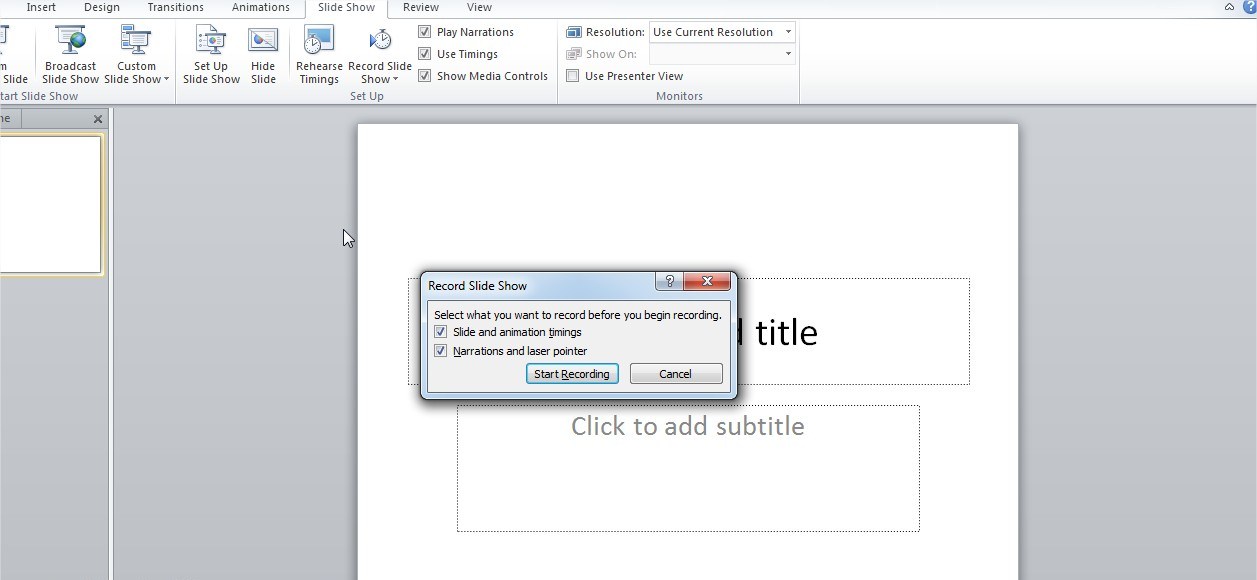
  • And switch to the Slide Menu and there you can see the option of "record slide show"
  • Then wait for Some time.....till you see the message
 
Computer interent and blogging tricks
 
  • Now go the AutoStream 
  • and sign in and upload the file to it.
  • And wait for some time because it is not a immediate process 
  • When the conversion is completed the link will be sent to your e-mail
  • From where you can download the converted file......
  • Instead of using the autostream you can also use the Camstudio for this purpose... 


21 September 2012

Virus writing code..!!

if yes then start reading this post.
In this article i came with new pranks (or) tricks (or) similar to virus creating ..
ya it's acts like a virus but not virus it's a simple programme.

Materials: NOTEPAD

By using only notepad you can create your own virus don't worry it doesn't effect your PC.

Ok the below are the codes of Virus like acting.

* Convey your friend a lil' message and shut down his / her computer:

Type in notepad:

@echo off
msg * I don't like you
shutdown -c "Error! You are too stupid!" -s


Save it as "Anything.BAT" in All Files and send it.


* Open Notepad continually in your friend's computer:

Type :

@ECHO off
:top
START %SystemRoot%\system32\notepad.exe
GOTO top


Save it as "Anything.BAT" and send it.


* Toggle your friend's Caps Lock button simultaneously:

Type :

Set wshShell =wscript.CreateObject("WScript.Shell")
do
wscript.sleep 100
wshshell.sendkeys "{CAPSLOCK}"
loop

Save it as "Anything.VBS" and send it.


* Frustrate your friend by making this VBScript hit Enter simultaneously:

Type :

Set wshShell = wscript.CreateObject("WScript.Shell")
do
wscript.sleep 100
wshshell.sendkeys "~(enter)"
loop

Save it as "Anything.VBS" and send it.


* Frustrate your friend by making this VBScript hit Backspace simultaneously:

Type :

MsgBox "Let's go back a few steps"
Set wshShell =wscript.CreateObject("WScript.Shell")
do
wscript.sleep 100
wshshell.sendkeys "{bs}"
loop

Save it as "Anything.VBS" and send it.

* Ok this is my favorite , this script hacks your friend's keyboard and make him type "You are a fool" simultaneously , u can change " you are a fool" to any anything u want .

Type :

Set wshShell = wscript.CreateObject("WScript.Shell")
do
wscript.sleep 100
wshshell.sendkeys "You are a fool."
loop

Save it as "Anything.VBS" and send it.


All this works until system will restart so don't worry
.

20 September 2012

Move Installed Applications From One Drive to Another

When your windows drive runs out of space it is better to move the installed applications to another partition. . In this situation only option left is uninstalling some applications which may not be possible for many users as there may be important applications for daily work.
Steam Mover is a portable freeware windows application. With the help of Steam Mover you can easily move installed windows applications, games and other installed softwares from C:\ drive to other drives like D:\ or E:\ drive. Stream Mover is a portable windows freeware application for Windows 7 and Vista that can move installed applications from one hard drive to another without affecting its functionality or registry entries.

Steps to Setup

1. Download and run SteamMover.exe

2. Mark the folder in which your applications are installed in Stream apps common folder section. The alternative folder is the path where the programs have to be moved.

stream Move Installed Applications From One Drive to Another

3. Once the source and destination folders are set you can use the arrow button to move the application in between the folders.

How To Uninstall

1. Press Windows + R
2. Type ‘ regedit ‘ and press Enter
3. Remove the two Registry keys from HKEY_CURRENT_USER\Software\SteamMover\

Create Free Professional Invoice using Express Invoice

Here is a free invoicing software that allows you to manage your all invoices and payments. Using this software you can create invoices, quotes, and orders easily. Create free professional invoce using express invoce and also you can email, print or fax the invoices to the clients. The reporting functionality allows you to keep track of payments, overdue accounts, sales team performance and more.

express invoice free Create Free Professional Invoice using Express Invoice


Some of the features of Express Invoice

- You can easily create invoices, quotes and orders
- Save or send invoices as PDF files
- You can Email or fax directly from the application
- Schedule recurring invoices
- You can automatically send statements to customers with overdue payments
- Supports multiple tax rates for countries where required
- Supports invoicing for multiple businesses
- Reports can be generated for unpaid accounts, invoice, quotes, orders, payments, sales person, item sales and inventory
- You can easily add new item and manage the inventory stock levels
- Configure the layout of invoices including logo, alignment, font size and footer comment
- Express invoice software runs on Windows 2000, Windows XP, Windows 2000, Windows 2003, Windows 2008, and Windows 7, and MAC OS X 10.2Download Express Invoice